Stop Jumping Between Tabs: Using Google AI Mode for Business to Sync Your Workflow
Google's new AI Mode lets you link and control apps like Gmail and Calendar from 1 interface. Instead of jumping between tabs, you can execute tasks across apps with simple commands, saving hours of manual clicking.
Key Takeaways
- Google AI Mode now supports direct interaction with linked apps to execute tasks.
- Context switching between tabs is a major productivity drain for small business owners.
- You can now ask AI to perform actions across apps, like drafting emails based on calendar events.
- Setup requires no coding: it involves toggling extensions to give the AI permission to access data.
- Starting with 2 core apps like Gmail and Calendar provides the fastest return on time saved.
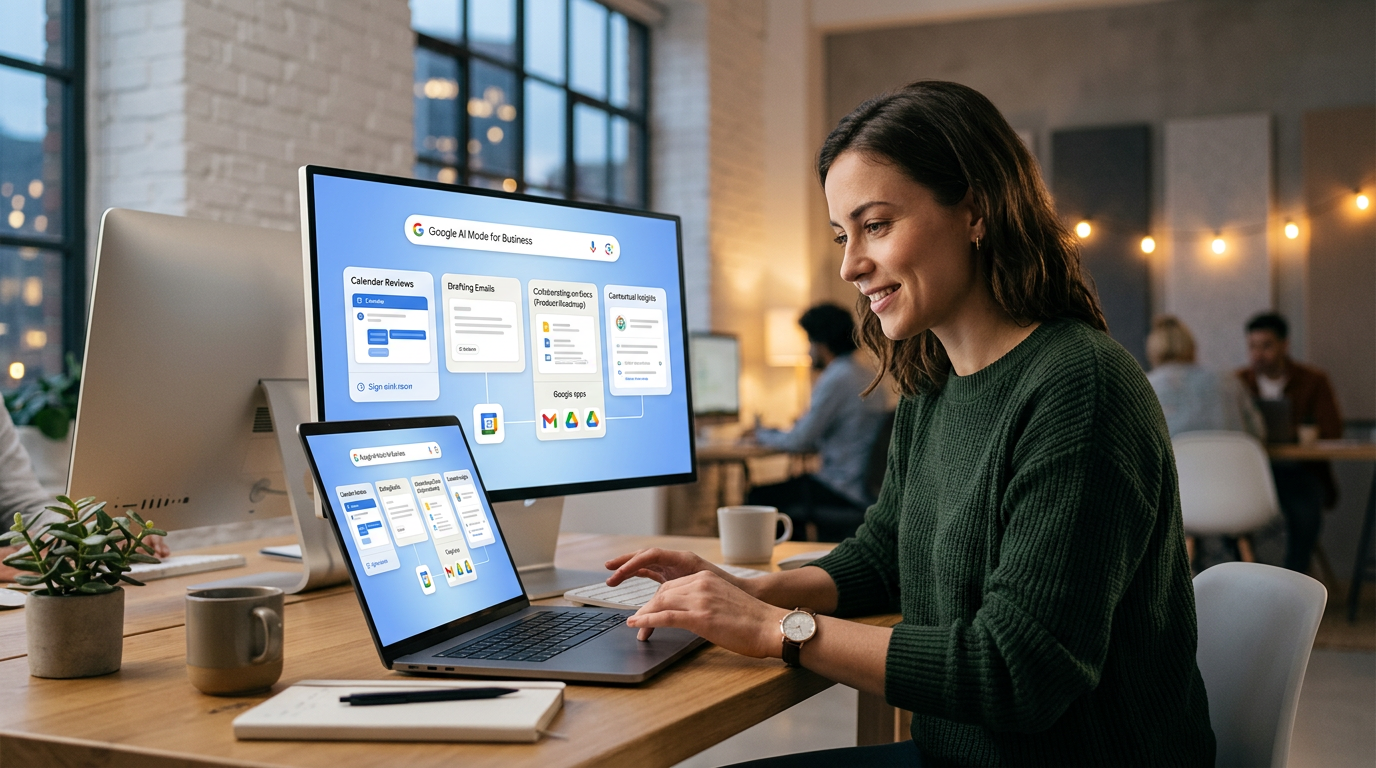
The End of the Tab Shuffle
I see it every time I sit down with a business owner. You've got 14 tabs open. You're copying an address from an email to paste it into a map, then jumping to a spreadsheet to log a lead, then over to a calendar to check your 2:00 PM. This back and forth movement is called context switching. It's a silent killer of focus that costs you hours every week. Google just released a tool that aims to kill the shuffle for good.
According to reporting from TechCrunch, Google AI Mode now lets you link and interact with specific apps from a single interface. Think of it as a master control center. Instead of opening 5 different programs to finish 1 task, you tell the AI what you need and it pulls the data from your connected apps to get it done. It's a way to centralize your desk without hiring a developer to write code for you.
How Google AI Mode for Business Actually Works
Most people think of AI as a chatbot where you ask a question and get a paragraph of text back. This is different. This is about execution. Google's opening up pathways so their AI can read and write to other tools you already use, like your email, calendar, and documents. When you wire these together, the AI stops being a dictionary and starts being an assistant.
If you've got a meeting request sitting in your inbox, you don't have to switch to your calendar tab to see if you're free. You ask the AI to check your schedule and draft a reply. It looks at your real world data and handles the middle steps. This is the first step toward a single pane of glass for your business operations. You stay in 1 spot, and the information comes to you.
From the Trenches: The Practitioner's View
I've spent years building systems for small offices, and the biggest friction point is always the data gap between apps. When information lives in silos, it gets lost. By using these new integrations, you're effectively building a bridge between your customer emails and your scheduling tools. You aren't just saving clicks: you're reducing the chance that you'll forget to log a lead or double book a consultation because you were too tired to flip between windows.
3 Steps to Set Up Your Integrated Workspace This Week
You don't need a computer science degree to start using this. The goal is to strip back the complexity and focus on the 3 apps that eat most of your time. Here's how I'd suggest you start.
1. Audit Your Daily Loops
Spend tomorrow morning noticing which 2 apps you switch between most often. For most of you, it's Gmail and Google Calendar, or Google Docs and your CRM (Customer Relationship Management tool). These are your loops. Identify the top 2 and decide those will be the first ones you link. Don't try to connect everything at once. Start with the pair that causes the most frustration.
2. Link Your Primary Extensions
Go into your Google settings and look for the Extensions or App Linkage section within the AI interface. You'll see toggles for Workspace tools. Turn them on. This gives the AI permission to look at your data. It sounds simple, but most people skip this step and then wonder why the AI can't find their meetings. You have to explicitly give it the keys to the building.
3. Practice Action-Based Prompting
Stop asking the AI for information and start asking it for actions. Instead of saying "What is on my calendar?" try saying "Find the email from John about the contract and add a reminder to my calendar for Thursday at 9 AM to call him." This forces the AI to reach across 2 different apps to complete a single request. If it fails, shorten the request. If it works, you just saved 3 minutes of clicking.
Why This Matters for the 40+ Business Owner
I know many of you feel like you're constantly chasing the latest shiny object. This isn't that. This is about reclaimed time. If you can save 15 minutes a day by not hunting for files or re-typing dates, that's over 60 hours a year. That's a full week of vacation bought back just by changing how you interact with your browser. You don't need to learn how to prompt like a pro: you just need to know which apps to stack together.
What to Watch Next
Google is rolling this out in phases, starting with their own internal apps. The next big jump will be when they allow third party tools like Slack or your specific accounting software to join the party. For now, focus on mastering the Google Workspace connections. Once you get the hang of asking 1 window to manage your entire day, you'll never want to go back to having 20 tabs open again. If you want to see exactly how I wire these up live, my 3 day training is where we do the heavy lifting together.
FAQ
Do I need to be a developer to use this?
No, it's designed for regular users. You simply enable the app extensions in your Google settings to let the AI talk to your other workspace tools.
Which apps can I link right now?
Currently, it works with Google's own suite, including Gmail, Drive, and Calendar, with more third party integrations expected later.
Will this keep my data private?
Yes, you have to manually grant permission for the AI to access each app, and you can revoke that access at any time in your settings.