Hands-Free Claude: How to Dictate Emails and Manage Files on macOS
Download Atticus for macOS, link it to your Claude Pro account, and use the Control + Option + Space shortcut to control your computer with your voice.
Key Takeaways
- Atticus runs on your existing Claude Pro subscription, costing about 0.18 cents of plan usage per ask.
- Voice transcription happens locally on your Mac to keep your audio private.
- Safe Mode prevents the AI from deleting files or sending emails without a final click.
- Learned shortcuts skip the AI, allowing apps to open in 0.08 seconds.
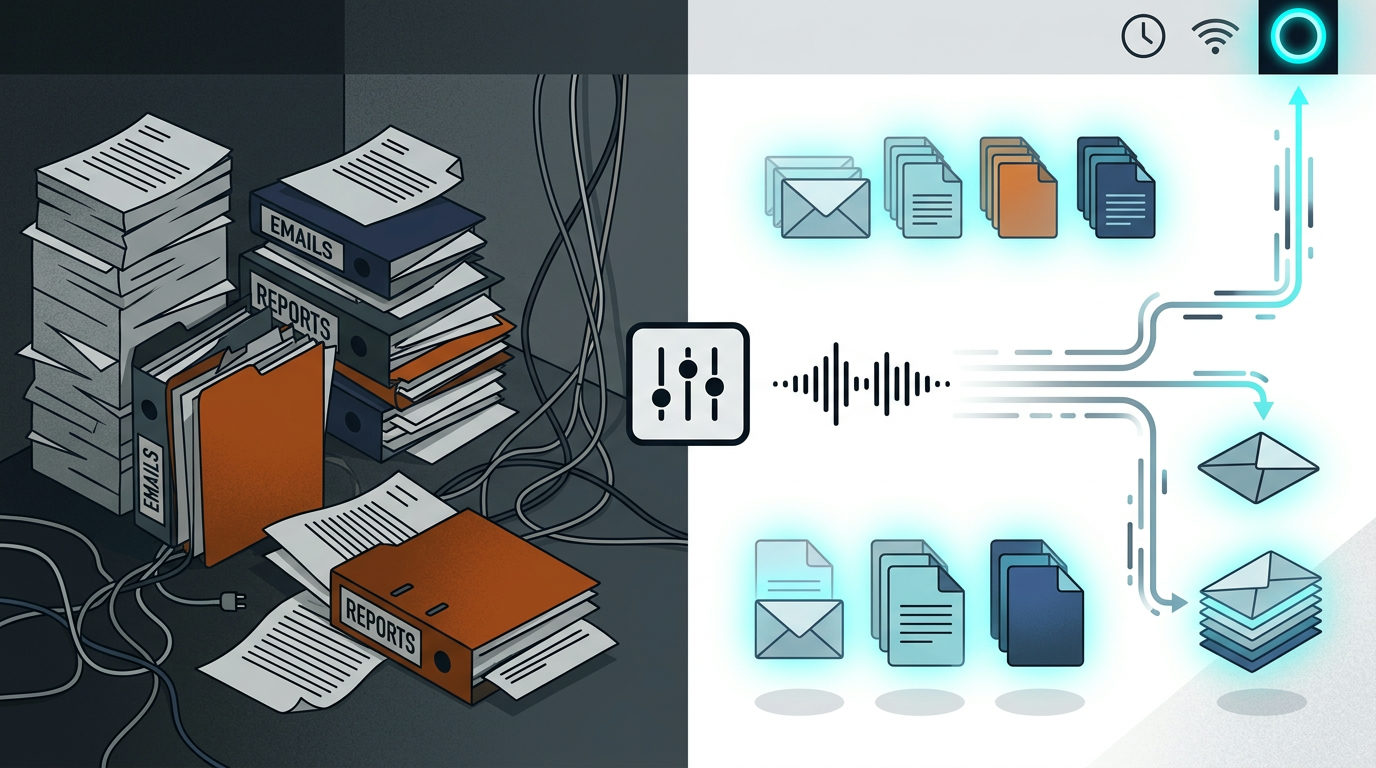
Typing prompts into a browser slows you down when you're mid-task. You can wire Claude directly into your Mac to handle tasks hands-free. This setup uses an open-source tool called Atticus to bridge your voice to Claude's intelligence.
You don't need to buy a separate API key (a digital passcode that lets different software programs talk to each other). It runs on the Claude Pro or Max subscription you already pay for. By holding a keyboard shortcut, you can dictate emails or move windows without touching your mouse.
What You Need Before Starting
You need a Mac and an active Claude Pro or Max subscription. Atticus uses Claude Code, a tool that lets the AI interact with your files. You'll need to authorize this on your machine first by logging into your Claude account through the Terminal (the Mac's text-based command center) instead of a browser.
Step 1: Install the Interface
Download the installation files from the Atticus GitHub page. Inside the folder, look for a file named install.sh. Open your Terminal by pressing Command + Space and typing Terminal. Drag the install.sh file into that window and hit Enter. This bolts the software onto your system without you having to move files manually.
Step 2: Configure the Voice Trigger
Atticus lives in your Mac's top menu bar. The trigger is holding Control + Option + Space. When you hold these keys, a ring appears on your screen to show it's listening. It uses Apple's on-device speech recognition. This means your audio stays on your Mac and isn't sent to a server to be turned into text.
Step 3: Put it to Work
You can now talk to your Mac to handle admin work. Here are three ways to use it:
- Drafting Replies: Open an email, hold the shortcut, and say, "Reply to this. Tell them Tuesday at 2 PM works." Atticus reads the screen and drops the text at your cursor.
- Screen Summaries: If you're looking at a long PDF, say, "Summarize this page in three bullets." It reads the active window and gives you the highlights.
- Window Management: Say, "Put Chrome on the left and my notes on the right." It snaps them into place. Simple asks like this skip the AI and run in about 0.08 seconds.
Safety and Privacy
The tool includes a Safe Mode. Before the AI tries to delete a file or send an email, a box pops up asking for your permission. It blocks high-risk commands like system shutdowns by default. You can check the ask log in the settings to see every command the AI sends to your system.
Atticus learns your habits. If you frequently say, "Open Slack and my calendar," it saves that as a rule. The next time you ask, it executes the command in 0.4 seconds because it no longer needs to process the request through the AI.
FAQ
Do I need to pay for an API key?
No. Atticus runs through your existing Claude Pro or Max subscription via Claude Code.
Is my voice data private?
Yes. Atticus uses Apple's on-device speech recognition, so audio never leaves your Mac.