Stop Typing Invoices: Using Mistral OCR 4.1 to Automate Your Paperwork
Mistral's new OCR 4.1 model handles complex layouts and phone photos of documents with high accuracy. Small business owners can use it to automate invoice processing and contract data entry, saving hours of manual typing and reducing bookkeeping errors.
Key Takeaways
- Mistral OCR 4.1 understands document context, not just individual letters.
- It handles messy phone photos and tilted images better than traditional software.
- Small businesses can use it to extract specific data like line items and totals into spreadsheets.
- Automating data entry reduces the cost of administrative overhead and human error.
- The best first step is testing the tool on your 10 messiest recurring documents.
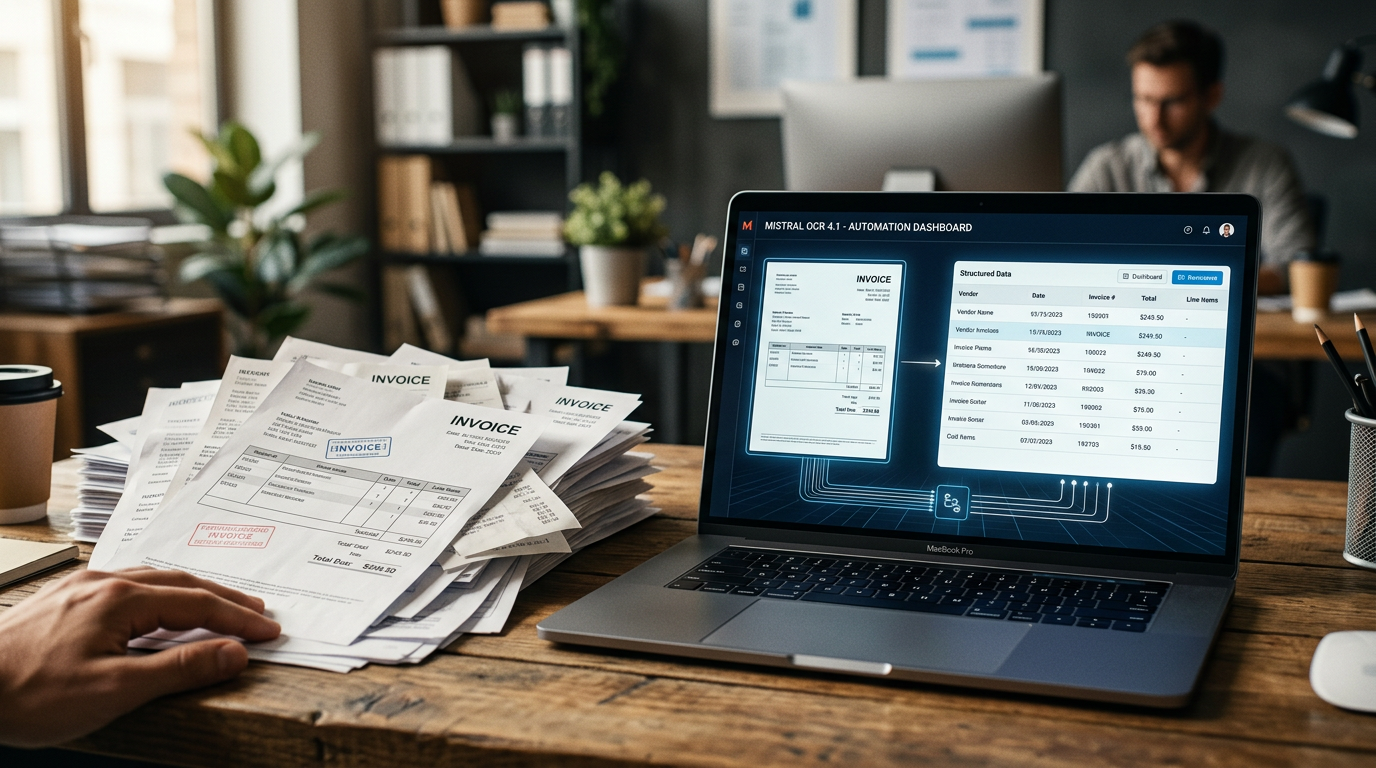
The End of Manual Data Entry
Paperwork kills profit. If your staff spends hours every week typing data from physical invoices, messy contracts, or handwritten receipts into a spreadsheet, you're burning cash. You aren't just paying for the time. You're paying for the typos that mess up your books. Mistral just released a tool called OCR 4.1 that solves this by turning messy images into clean, structured data.
OCR stands for Optical Character Recognition. It's a technical way of saying the computer looks at a picture of a document and reads the text inside. While this technology has existed for a while, it usually struggles with weird layouts, tables, or blurry phone photos. This new model is different because it understands the context. It doesn't just see letters: it understands that a number at the bottom of a page is probably a total balance due. This makes AI OCR for small business a practical reality.
How Mistral OCR 4.1 Works for You
The biggest hurdle with standard tools is document structure. If you scan a 3 page contract with checkboxes and signatures, most software gets confused and spits out a jumbled mess. According to the Mistral documentation, this version is built to handle complex layouts like multi-column pages and dense tables. It acts like a digital assistant that reads the page and organizes the information exactly how you need it.
I think the most useful part for a small team is how it handles images. Your team probably takes photos of receipts with their phones. Those photos are often tilted or poorly lit. This tool processes those files and pulls the data without you having to straighten the image or fix the lighting. It saves you from the tedious task of cleaning up files before you can even use them.
I've seen business owners try to hire virtual assistants just to manage this data entry. It usually costs $500 to $1,000 a month and still results in errors. By wiring up an AI tool to do the heavy lifting, you get the data back in seconds for a fraction of the cost. You aren't replacing your team; you're giving them their afternoons back so they can talk to customers instead of staring at a stack of paper.
Step 1: Gather Your Messiest Paperwork
Start by collecting the documents that cause the most headaches. This is usually the stack of utility bills, supplier invoices, or those 1 page service agreements that clients sign by hand. Don't worry about making them look perfect. The goal is to see how the system handles your actual daily workload, not a pristine PDF. Pick 5 to 10 documents to start.
Step 2: Convert Images to Structured Data
When you use Mistral OCR 4.1, you aren't just getting a text file back. You can ask the AI to format the results into a list or a table. For example, you can tell it to find every line item on an invoice and put the price in one column and the quantity in another. This is the secret to getting the data ready for your accounting software without touching the keyboard.
Step 3: Bolt it to Your Existing Workflow
You don't need to be a programmer to make this work. Many simple automation tools allow you to connect a folder on your computer to an AI service. You drop the photo in the folder, the AI reads it, and the data pops out in a spreadsheet. It's like building a conveyor belt for your office work. Start small by automating just one type of document, like your monthly expense reports.
Step 4: Audit the First Few Runs
Even though this model is highly accurate, check the work for the first week. Look at the numbers specifically. AI is great at reading words, but you want to ensure it isn't missing a decimal point on a $5,000 invoice. Once you see it get 20 documents right in a row, you can start to trust the process more and step back from the manual review.
What to Watch Next
We're moving toward a world where the physical filing cabinet is just a backup, not a workstation. Focus on stripping back the hours you spend on data entry. If you can save 5 hours a week across your team, that's 20 hours a month redirected toward growing your revenue. That is a win for any small business owner.
If you want to see exactly how to set this up without writing a single line of code, join our next 3 day training. We'll walk through the exact steps to connect these tools so your paperwork starts filing itself.
FAQ
What does OCR actually do?
OCR stands for Optical Character Recognition. It is a technology that takes a picture of a document and turns the visual text into digital text that you can copy, paste, and search.
Do I need to be a developer to use Mistral OCR 4.1?
No. While the model is technical, many user-friendly tools are being built on top of it that allow you to upload files through a simple website or folder.
Can it read handwritten notes?
Yes, this model is specifically designed to handle a mix of printed text and handwriting, making it useful for signed contracts or annotated receipts.